Categories
Ideas to Share

Creating A Screencast: Setting Preferences for Students with Disabilities

The description that I included on YouTube is not visible when the videos are embedded into WordPress (click here for the page with another embedded videos). I have included that information here and added more information about the video’s content.

The screencast portion of this video was recorded in Camtasia’s trial version, and I edited the entire video in the trial version of Camtasia, so the watermark is highly visible. I am evaluating this software to determine if it is something that I would like to purchase. So far, I’ve found the zooms easier to manage than in iMovie, but iMovie fully integrates the videos and photographs in my MAC’s Photos application. I may decide to purchase Camtasia for projects that require many post production zooms, although up until now all of my zooms have been done with my camera’s optical zoom.

These directions are for Apple’s Macintosh computers running MAC OS 10.11.6 (El Capitan). Other Apple operating systems have these functions, but they may look a little different. Below are the basic steps that I demonstrated in the video.

Screencast Introduction Transcript:

Hello! I’m Jeanne Stork. I teach in a computer lab for students with significant developmental delays due to severe autism or intellectual disabilities. My students use Macintosh computers, either iMac desktops or MacBook Air laptops. This is how I make some adjustments to make the computers easier for them to use.

            System Preferences: The system preferences are located under the apple in the upper left corner of the screen.

            Accessibility Preference:

Display: Shake Mouse (Some students play with shaking the mouse, but it helps students with attention and visual perception difficulties who often lose track of where the cursor is located on the screen.)

Audio: Play Stereo As Mono (for students who hear better with one ear than the other and would miss a stereo channel)

Increase Double Click speed (to reduce accidental double-clicking from my repetitive clickers)

Mouse:

I do not use wireless mice because many if my students pound the mouse. Wireless mice break easily.

I increase tracking speed to reduce the need to pick up and reposition the mouse.

I make the two major buttons the primary click (left-click) and turn off all other buttons because the vast majority of my students do not know how to click one button at a time or how to differentiate when to only left-click.

I turn off scrolling to further simplify the mouse for my students. The scroll function can also interfere with the educational software that I use.

My students enjoy playing with the mouse, so the more options that I can turn off the easier it is for them to complete their work.

Trackpad Preference:

Point and Click:

Turn off all options

Increase tracking speed

Scroll and Zoom:

Turn off all options

More Gestures:

Turn off all options

Screencast Conclusion Transcript:

As you saw, I spec up the mouse and trackpad so that the cursor moves fairly quickly and the mouse and trackpad don’t have to move all that much. This prevents students from hitting each other with the mouse as they are moving too far to the side, moving the mouse off the table as they are dragging the mouse toward them, or even dislocating the mouse from the wire if they get frustrated because they need that extra inch and the mouse just won’t move. With the trackpad, sometimes my students will actually move their finger off the pad onto the frame of the computer itself and wonder why nothing’s working. Well, of course nothing’s working, they’re not on the trackpad, but the students don’t understand that, especially in the beginning. As students progress, I can give them fewer adjustments, but I tend to keep the adjustments on just because it makes my life easier. I don’t have time between classes to readjust computers. But if necessary, I can always make individual adjustments. Feel free to explore and see what works best for you. Thank you.
Categories
Ideas to Share

Video Editing: Creating the Flying Fish Video

The description that I included with the video on YouTube is not visible when the video is embedded into my Web site, at https://jeannestorkspecialeducationinstructionaltechnology.wordpress.com/projects-digital-and-other/the-importance-o…deo-in-education/, but you can read it at https://www.youtube.com/watch?v=o_3bLtyarQ8. Some of that information is below, with additional information about the video’s content and how I made the video that would not fit in the YouTube description field.

I used the Flying Fish Market video as part of a series of videos during a mini-unit on fact versus fantasy. The volume had to be turned way down because of inappropriate lyrics. We discussed what is real and what is fake or pretend using a variety of vocabulary words. Some students needed more concrete questions (“Do fish fly or swim?”). The difficulty level and wording of the questions varied with the students’ abilities to answer them. Whenever possible, I included the whole range of Norman L. Webb’s (et al) “Depth of Knowledge Levels,” as used by my school district. Most of the students in three of my classes were even able to ask each other questions with prompting. A few of my classes have some students who neither talk nor have effective use of picture symbol communication boards or devices; those students work on attending/focusing skills and using non-verbal communication skills such as eyegaze, pointing, and gesturing as they learn to use picture symbols. One of my verbal students declared my videos “boring.” Another student screamed that the movie was broken every time I stopped it to ask the class questions; he had to be repeatedly calmed down to prevent him from hitting his head. If I had waited until the end of this video, the students would not have remembered the sections about which I was asking. The rest of my students enjoyed the videos and the way I presented them. Having only two upset students during a week of class lessons is excellent progress in my school. The other videos may make it to YouTube someday, when and if I find the time.

I could have used my camera’s backlighting setting when recording the centered shots. I did not realize how much the white clouds in the background were affecting the video. This was very noticeable when I showed the video to one of my classes as part of a fiction versus non-fiction lesson, so I made some corrections in iMovie.

I wanted to highlight as much of the action as possible, so my cuts often do not make sense if you are following the music. I used transitions (spin in, spin out) between some camera takes, but the music is still rough. I found that if I included too many transitions it created a visually choppy video, so I used my judgment for which transitions to retain and where I can eliminate excessive transitions.

I use a Panasonic HC-X920 camcorder for my introduction and conclusion. I like this camera because its three MOS sensors seem to pick up great detail. Unfortunately, I might need a replacement. As of this recording, I have not decided whether to get another X920 or to go for a more modern one that adjusts better when light and dark are in the same shot but has only one sensor. I want it all for as little money as possible!

I did not use an external microphone when I recorded the Universal Orlando show, but I think that the loud music would have still made the some of the performers’ words difficult to hear even with an external microphone. I do not have a license for professional taping and felt that it would be a waste of my money to purchase a microphone that Universal might not even let me use.

The background noises during my introduction and conclusion could not be avoided. I live in a large busy city; noises, as I discovered when I moved here, are a fact of life. I tried taping in my apartment and at work, in the evening and in the morning, and quiet never happened. I’m not sure how much you will hear on your end, but I had forgotten just how much of a luxury silence really is. I also tried to get rid of the reverberation in my comments by using an external microphone, but it was not compatible with my camera so the audio and video did not quite line up and could not be fixed by separating and adjusting the tracks in post-production. I am not real happy with the way I sound, but after over two hours of trying, I gave up and just chose the best clip.

If you want to get the full experience of the show, you will have to visit Universal Orlando yourself. It is a trip that I highly recommend. I am not an employee, nor do I have any personal or business connection to the park, but I can say that shows, such as the one you just watched, are best seen live. Besides, you can’t ride the rides from your computer.

Video Introduction Transcript:

            Hi! My name is Jeanne Stork. I teach in an adapted computer lab for students with significant disabilities.

This video demonstrates how angles and zoom can be used to avoid obstacles and to highlight action. I recorded the show at Universal Orlando from the center, left, and right, and I zoomed in on the action to highlight particular performances. I’ll be back after the show to discuss more of my process.

            Video Conclusion Transcript.

            Hi! Jeanne Stork, here again. I had to remain stationary, so I panned a bit horizontally and vertically, being careful not to disturb any other audience members. The shot taken from the audience’s right side is at a closer angle to the stage than from the left side, so I played with shooting angles that way. I selected the angles for this video that worked around obstacles, mmm such as performers standing in front of the camera waiting for their turns, and that highlighted action that I found to be particularly entertaining. The camera’s optical zoom let me capture a few of the stunts up close then return to a wider shot to record more of the action. I also added a post-production digital zoom to close the video. I wanted to focus in on the upper left corner of the screen and avoid the audience crowding the rest of the shot as people got up to leave. I used the camera’s optical zoom many times while taping, but it is nice that iMovie has this cool zooming function. Please, read my notes if you want some additional information. Thank you.

Categories
Ideas to Share

Mobile Operating Systems: iOS and Android

I decided to blog about mobile operating systems because I feel that instructional technology is gradually including more mobile devices. Here in the United States, iPads and Android tablets are competing for expanding educational markets. I have iPads that I bring to the classes on the first floor with students who cannot go up the stairs to my second-floor computer lab. Many of the students in these classes have difficulty using computers due to severe intellectual disabilities, and the iPads are often easier for them. I do have students who think the iPads are great chewy toys and make fun sounds when pounded against tables or thrown on the floor, but I also have students in those classes who really enjoy using the iPads as instructional devices. I know less about Android tablets but will do a bit of computer research.

Apple iOS

iPads use the iOS operating system. It is created by Apple and only runs on Apple devices. The current version of iOS is 10.2.1, but iOS 10.3 is expected soon. iOS 10 can run on iPhone 5 and above, iPad 4 and above (including mini 2 and 3), and iPod Touch 6th generation (Apple, 2017 a). I run iOS 5.1.1 on original iPads (also known as iPad 1), iOS 9.3.5 on my iPads 2-4, and iOS 10.2.1 on the iPad Airs. I’ve kept the iPad 4 at a lower operating system because even though iOS 10 can run on iPad 4 doesn’t mean it should; iOS 10 will probably slow things down, but I might change my mind in the future.

The key selling points for iOS 10 include redesigns to Photos, Maps, Messages, and Siri. Apple claims that iOS 10 is “More Personal. More Powerful. More Playful.” (Apple, 2017 A). Other improvements in iOS 10 that I have noticed are simplified multitasking between apps by swiping between open apps or seeing two apps at a time in a split view, the ability to see notifications when the device is in lock-screen mode, and the ability to delete some of the built-in apps to free up storage space. As mentioned earlier in this report, I never perform upgrades when they first come out (at least not on purpose), but I have found iOS 10 to be helpful.

One key point for me as a special education technology teacher is that Siri, Apple’s voice-controlled assistant, now works in more apps. I have a student who is verbal but quadriplegic. Since he cannot use his hands, I would love to set up an iPad that he can control with his voice. It will be interesting to discover if Siri is simple enough for a young child with a mild developmental delay to use, if his voice is loud enough, and if the classroom noises interfere too much for Siri to be effective. I am going to wait until the fall for this project because the boy is just beginning to speak loud enough to be heard in a silent room. It will make a good blog topic.

Google Android

Google is currently advertising that “Google Assistant” and “Android Auto” will be available for many additional Android devices (Google, 2017 a). Assistant allows users to speak into Android devices, similar to the way Siri works on iOS devices. Auto is a mapping/driving direction app. Google is currently rolling out Android 7.0 “Nougat”. Along with improvements to Assistant and Auto, Nougat has improved the speed with which photos can be found in the Google Photos App and increased the ability of users to personalize their devices. Google also states on the Android Web page that they have “more apps than iOS.”

My Preference

Except for a few short months with a cheap Android phone that would not connect to my school’s Wi-Fi (a problem with proxies that Android has since corrected) and was already out-of-date when I purchased it at a large discount chain store, I have been an iOS user, beginning with the original iPad. I have used iPads with my students almost since they first came out. My school received the original iPads from a grant for classrooms, but I purchased the ones that I still use today. Some of the specialized apps that my students use are still only available for Apple’s iOS devices. Eleven out of my twelve iPads are still working (an iPad 2 died last year) and I have a collection of educational and assistive iOS apps that I paid for (or obtained for free during promotions). All of these factors lead to one basic fact: it would not be cost-effective for me to use anything other than Apple’s iOS devices. It makes no difference how great Android devices claim to be, I am not spending my money to replace what I have.

Categories
Ideas to Share

Daylight Savings Time Rumination

Does anybody really know what time it is? The farmers near where I grew up hated the time leaps. They kept their milking cows on the same schedule, but the relative time changed. If the morning milking was at 7 am the summer “half” of the year, it became 6 am in the “winter” time. What really confuses me is how the U.S. Congress came up with the dates. The dates are not equal distance from the solstices. The 2016 winter solstice was Dec 21; Daylight Savings Time (DST) ended Nov 6, 2016, and began again March 12, 2016. There were 45 days between the ending of DST and the winter solstice. There were 81 days between the winter solstice and today’s beginning of DST. To confuse matters even more, the sun set at 5:47 pm in NYC on the last evening of DST in 2016 then jumped to 4:46 pm the first day of standard time. The sun will set at 6:59 pm tonight (first evening of DST) and last night was 5:58 pm. Where is the science that shows that shows that these times make sense? How was it determined that the days and sunset times needed to be different for the beginning and ending of DST? Show me the science!

Categories
Ideas to Share

Voice-to-Text Struggles

I often attend workshops that include learning about adaptive technologies as part of my job. My school district generally has about six workshops a year for what we call “technology liaisons,” the person who volunteers his or her time to help the school with instructional and adaptive technologies. Adaptive technologies include just about any technology that can help a person with a disability in school, at work, at home, etc.

This brings me to my struggles with voice-to-text applications. My shoulders have both been injured at work and neither one likes repetitive motions, such as typing. I can lift a ten-pound box chest high, but I cannot spend two hours at the computer. So, I decided to experiment with voice-to-text software that lets me speak into my computer. I tried two different brands, both of which promised to improve as I type. The more I use the software, the more accurate they should become. Unfortunately, I have discovered that even speaking these two simple paragraphs requires me to do a lot of editing on the keyboard. For me at least, typing and taking frequent breaks is more effective than using voice to text software. This field of assistive technology has improved a lot in 10 years, but it does leave me concerned for people who have no ability to use the keyboard.

For now, I will only resort to voice-to-text when absolutely needed. My shoulders are healing, but slowly. Many of my students will never be able to type.

Categories
Specialized Computer Lab Ideas

Wired Versus Wireless Headphones

Many of my students put the headphone wire in their mouths. Some are on the developmental level where they are mouthing many things in their environment. Other students just have a long-standing habit of mouthing objects. Either way, it becomes a sanitary issue, and bite marks can ruin headphone cords. There is very little electricity running through my cheap headphones, so I am not concerned about the children getting hurt.

Some people have asked me to switch to wireless headphones. These cost more upfront but ideally last longer. The problem is that if they are dropped (or thrown), they also break easier. Sometimes, headphones accidentally fall off a young child’s head because even most child-sized headphones are too large for some of my students. Sometimes, the headphones receive quite forceful assistance to reach the floor either because the student has sensory issues and does not want to wear headphones or because the student is angry with the computer or a staff member. I even have a few students who would rather tap the headphones like a drumstick than do their work. All of these forces would break a wireless transmitter.

For now, I’ll stick with wired headphones. Biting or pulling headphone wires does happen more often than dropping, throwing, or tapping headphones, but I am concerned that these incidents would increase the overall cost per computer. If the school ever has extra money and wants to purchase wireless headphones, I will not turn them down. It would be interesting to see if they really do last long enough to justify the extra expense.

Categories
Specialized Computer Lab Ideas

Easy Way to Disable a Mouse Button

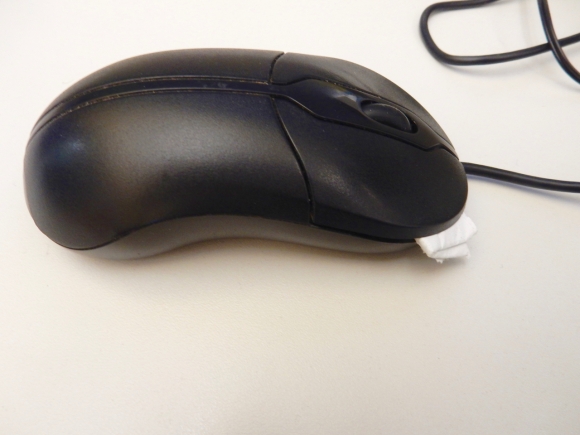
two-button mouse with folder paper towel under one button to disable it

Okay, so I have a collection of mice that are new but the model is old. I also have students who are not able to differentiate between left-clicking and right-clicking. These mice cannot be programmed in the computer’s system preferences, and the companies no longer have the drivers on their Web sites. My solution? I folded up a small piece of paper towel and very carefully inserted it in the edge to prevent the right button from clicking. I had to try a few different placements to make sure that the button was disabled without the paper towel activating the click internally (so that the  right button acts as if it is always down). I needed two small paper towel pieces for another mouse, one on the right edge and one on the back edge (near the user’s wrist). Ideally, I could just program both buttons to left-click, but this is a cheap alternative when programming is not available.

Some people remove the paper, but so far I have remained calm. Some of my students pull out the paper, but it is easy to replace, so I don’t worry. If I make a big deal out of telling the students to leave the paper alone, I can guarantee that it will be removed more often. Some staff members have pulled out the paper, possible so that they can right-click themselves or because they think a student put it there. Again, I just replace the paper. I think that most of the teaching assistants and therapists who use the computers have finally gotten used to my low-tech adaptation. Many students love playing with paper and string, so I expect that the paper will always be occasionally removed. I would rather have the students play with the paper than with the mouse or headphone wires.

This method does not teach students to avoid the right mouse button, but it does prevent students from accidentally right-clicking on everything. Many of my students are not adept at using the mouse in general, so I want to make it as easy on them as possible.

Categories
Ideas to Share

Halloween Costume?

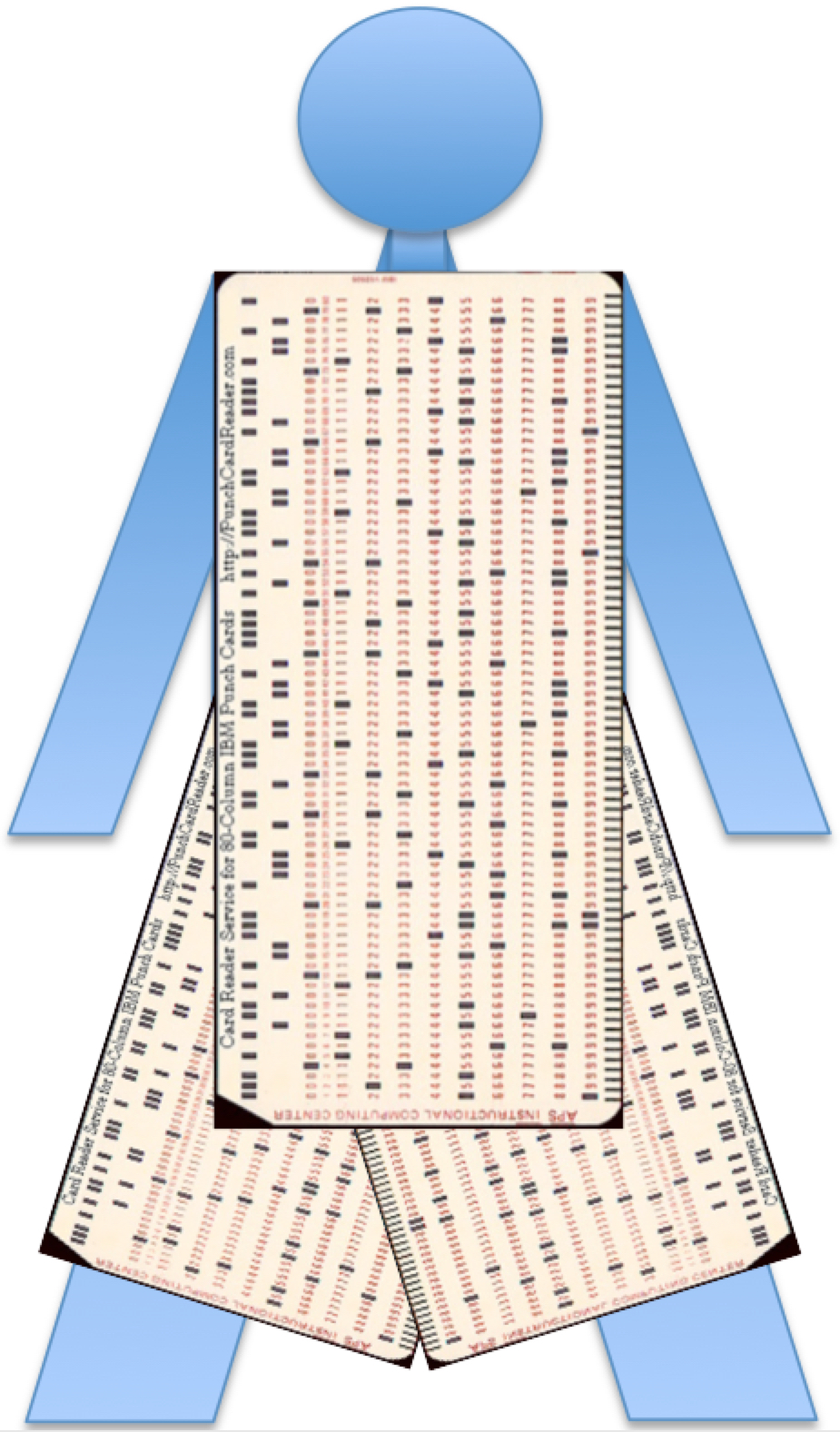
Would any of my coworkers know what this costume represents?

computer programming punch card costume

Do not fold, spindle, or mutilate.

Categories
Specialized Computer Lab Ideas

Benefits of Cloud Storage

A popular method of storing documents is cloud storage. True, our documents are not stored on an actual cloud in the sky, but they can be accessed from any Internet enabled computer or mobile computing device (i.e. smartphone). I learned a big lesson on the benefits of cloud storage this weekend. I created a nice folder of blogging materials then left that folder on a computer at work. It contains material for staff development workshops that I facilitated over the past two to three years, that I either developed or found on the Web. I have about five blogs worth of documents that were going to be turned unto blogs here this weekend. Now they will have to wait. Sure, I carry thumb drives with me, and transferring the documents to a thumb drive would have also worked. It was late, I’d been at work about ten hours, and I was tired. I’ll work on those blogs soon, but don’t ask me when soon is.

Categories
Specialized Computer Lab Ideas

Previewing an “Hour of Code” with Jeanne Stork

I previewed the “Hour of Code” project today with one of my classes. I do an “Hour of Code” every December, and many of my students really like it. I use one of the coding introductions from https://code.org/learn. Some of my students can work independently and others need a lot of help. Almost everyone enjoys going to the front of the room to work on the interactive white board. One year, several students learned their left and right hands after repeated lessons with using “Blockly” to move characters. That same year, one very academic student with autism taught himself to move beyond the Hour of Code while I was helping his classmates with the basics. My goal for some students is simply to touch or to move a block while other students are working on using the blocks to make characters move and turn. Occasionally, I get a few students who can problem solve how the blocks fit together to complete an activity. I work to make the lesson fun for whatever level each student is working on. Check out https://code.org/learn for more information about the “Hour of Code.”

Categories
Ideas to Share

Color Coded Picture Communication Symbols

The phrase "I wrote colored symbols on this paper" using color-coded picture communication symbols
Click above picture to read the PDF on my bulletin board.

Background
My Experience
Background Colors
Research

Background

Some of my students are nonverbal (do not speak) so they are learning to point to picture communication symbols like the ones above to communicate. I chose black pictures on colored backgrounds for my website’s banner, following the method that I learned in a workshop at my school district’s instructional technology office. This symbol coloring style is based on the work of Carol Goossens, Ph.D., CCC-SLP (Certificate of Clinical Competence for Speech-Language Pathologists).

Almost twenty years ago, I attended a series of workshops hosted by my school district on “Engineering the Classroom.” This work built upon Carol Goosen’s Aided Language Stimulation approach to teaching students to effectively use picture communication symbols. Typically developing children easily progress from single word utterances to conversing in full sentences as they mature. Students who cannot speak often need much more instruction to improve their communication skills. While it is true that not everyone colors their communication symbols, I began using this technique as soon as I learned about it.

return to top

My Experience

My personal experience aligns with what I learned in the workshop. Students have to see their communication system in use throughout the day (and preferably at home also). Just as children who talk or sign progress from single words to complete sentences, picture communication symbols users need that same opportunity. I have seen color coded symbols assist students to communicate. They also assist me to make sure that I provide a full range of symbols that allow for varied communication opportunities and experiences. Some students eventually outgrow the need for color coding, and other students may never need it, but I find it is a nice thing to have in my bag of tricks. I try to remember to point to symbols myself as I speak with nonverbal students; this models and validates their method of communication.

return to top

Background Colors

Here is the list of background colors that I learned in the workshops.
Pink: Verbs (i.e. walk, eat)
Blue: Descriptors — adjectives, adverbs, etc (i.e. warm, slowly)
Green: Prepositions (i.e. on, before)
Yellow: Nouns (i.e. chair, paper)
Orange: Miscellaneous category of interaction words
Question-words (i.e. Who, How)
Exclamations (i.e. uh oh, wow)
Negative Words (i.e. no, don’t)
Pronouns (i.e. I, them)

return to top

Research

Although the workshop I attended was over twenty years ago, many people continue to use Carol Goosen’s Aided Language Stimulation with children and adults who rely on picture communication symbols to communicate. A brief survey on the Internet brought up two articles of interest. The first abstract I read was about working with adults (Beck, Ann R.; Stoner, Julia B.; and Dennis, Marcia L.). An investigation of aided language stimulation: Does it increase AAC use with adults with developmental disabilities and complex communication needs? Augmentative and Alternative Communication, 25-1, pp 42-54, 2009. Retrieved September 21, 2016, from http://www.tandfonline.com/doi/abs/10.1080/07434610802131059). The second abstract dealt with children (Bruno, Joan and Trembath, David). Use of aided language stimulation to improve syntactic performance during a weeklong intervention program. Augmentative and Alternative Communication, 22-4, pp 300-313, 2006. Retrieved September 21, 2016, from http://www.tandfonline.com/doi/citedby/10.1080/07434610600768318). Both of these articles confirmed what I learned in the workshop many years ago and through my own experience as a teacher.

return to top

Categories
Ideas to Share

Helping Others Now Streamlined

During the summer, my school implemented a new procedure for me to help other staff members. Everyone is supposed to FIRST ask the administration if I can help, and then an administrator will email me. I hope that this will drastically cut back on people interrupting my classes asking for assistance. While I am very willing to do what I can for my colleagues, I cannot expect the paraprofessionals (teaching assistants) to be quiet and focus on the students if I am not.

The school’s principal devised this system. I used to have a sign-up sheet outside my computer lab’s door. He wants to be the one to decide what I work on so that he will know what is happening in the school. It is taking staff members a while to adjust, but I think that if I am strict about enforcing the principal’s directive, it will become easier for them to follow. People got used to my old system, where they could see how many people were above them, but I think they can adjust to something new. After all, it is the new procedure and we will use it.

Categories
Specialized Computer Lab Ideas

Great First Week Back!

In my previous post, I mentioned that I was eager to attend a workshop on Unique Learning System’s (https://www.n2y.com/products/unique/) new student activities and individual data collection. The expert canceled at the last-minute, so I volunteered to show what I know. I had gotten to work over an hour early, fortunately, so I was able to update a workshop I gave in June and present that. My knowledge of Unique is limited, but I filled in the time with additional Web sites to fill up the two-hour session, after I showed a brief demonstration of Unique Learning System’s new student interface and data collection. The morning was fine; people who were not interested kept their voices low and were not too disruptive. I still need to find out what I missed from the workshop that I was supposed to attend for cluster teachers (teachers who teach a specific subject instead of having a class of students).

The second day of preparation was split between meetings and setting up our rooms. It is impossible to be completely ready for students in the time allotted, but my room at least looked neater than it was when I first walked in the building. I made sure that there were chairs for all of the students in my larger classes and a few extras for the paraprofessionals (teaching assistants) who come in with the students. I am glad that we had two days to prepare for the students, occasionally we only have one day.

The students arrived on my third day of work. I am a bit upset to see that I teach one less class and have a cafeteria duty instead, but I understand that the school had to but more teachers in the cafeteria. The students I teach often are runners. Our cafeteria has five doors, so we need enough staff there to prevent students from leaving on their own. I feel that cafeteria duty is not why I have two master’s degrees, but the safety of our students has to come first! I don’t like but, but I do see that it is necessary. Besides, maybe another teacher will volunteer for cafeteria duty and the schedule might change. It’s unlikely but possible.

As always, there is a wide variety in my students. I have classes where most of the students do not talk and I have classes where almost everyone is verbal and the few nonverbal students use communication devices. I have students who know how to read and other students who are still in the everything-in-the-mouth stage of development. I think we have five different types of classes in my school. Yes, there are many students with challenging behaviors, but we are the right school for that. In general, I think that this is going to be a great year!

Jeanne Stork

Categories
Specialized Computer Lab Ideas

New School Year Preparation

My new school year begins tomorrow, and the students arrive on Thursday. Right now, I’m thinking of everything that I want to get done before the students arrive. Unlike most years, I will not be conducting a professional development workshop. Instead, I will be attending two workshops, one if which I actually got to choose! Many of my students are non-readers, and about half of those are nonverbal. I will be learning about improvements (I hope!) to News2You’s Unique Learning System that helps teach students to click on or tap picture symbols instead of words. I used to use this when they had activities that I could download onto my computers, but I stopped about two years ago when they stopped supporting the program I use (IntelliTools’ Classroom Suite (now by AbleNet). Now, News2You has improved its online access and individual data tracking, so I hope I can return to using it. I hope to spend most of Wednesday setting up student accounts and developing lesson plans for this new and exciting Web-based program.

Of course, the more mundane aspects of running a computer lab also have to be addressed. I need to make sure that all of the computers are running properly and request toner for the printer. I updated and re-imaged everything the last week of summer school, so the computers themselves should be fine. But what about the mice, the keyboards, and the headphones? Just because everything worked on August 15th does not mean it will work on September 6th. Hopefully, all will be well! My next project will be to set up four stations with adaptive devices for students who cannot use a mouse, but that may have to wait until later in the month. The biggest problem will be finding the time to do all of this in one day while fielding problems from all of my colleagues. Hopefully, I’ll be able to leave on time Tuesday and Wednesdays. The day is officially over at 3:00 pm, but (as many teachers will tell you) it rarely actually is.

I am truly looking forward to seeing my old students and getting to know the new ones, in spite of all of the work that the beginning of the year entails. It will be a great new school year! I will add pictures of the lab (without any students for legal reasons) when it is ready.

Jeanne Stork
